Blog posts about Fax and Voice

Articles I had written for my company

Archive for the ‘HOW TO’ Category

Microsoft Teams Tip: Use Desktop Apps instead of opening files within Teams

Posted by Koop on March 21, 2023

As part of 2023, it is my role to move all files to move from disparaged systems and have all files live within Teams/Sharepoint. This has been an interesting process and my company is slowly adopting it. The one thing that I’ve run into is when you try to open the file when browsing it from teams. The biggest issue is that when someone chats you, in order to read the chat, you have to close the file that you had open. Bummer.

With that being said, you can tell teams to open the file automatically using the application like Word or Excel as opposed to opening the file within Teams. You can do this by doing the following:

Settings -> Files and Links -> File open preference -> Desktop App

It is a game changer! Happy Teamsing!

Posted in HOW TO, Teams | Leave a Comment »

Webinar for Microsoft Teams Top Ten Tips & Tricks for 2023

Posted by Koop on March 7, 2023

I got an email today asking if I wanted to attend a webinar on the Tips and Tricks for MS teams. Here are the 5 highlights:

🟣 How to access content quickly with advanced search

🟣 Create tasks directly from conversations

🟣 Use your mobile as an additional display

🟣 Even bring important updates into your workspace

The webinar is on March 21st and I am looking forward to attending. The bullet that most interests me on this list is the ability to use my mobile as an additional display. I know that this is possible to do with a mac, but I am curious as to how they are going to enrich that experience within Teams

If you are interested in attending the webinar, hosted by Ribbn, feel free to drop a comment and I can share the link with you.

Posted in HOW TO, Teams | Leave a Comment »

Paging within Teams: Walkie Talkie

Posted by Koop on February 10, 2023

A company appoached and inquired if you can do paging within Microsoft Teams. I honestly didn’t know the answer so I did a little bit of research and came across Walkie Talkie. It is an app within teams that allows you to create Paging groups. The only downside that I’ve seen so far is that it only allows you to use this feature on your cell phone and not on the desktop and physical phones.

I know with Polycom physical phones, it is likely possible to enable this. The only downside would be that the pages would only work within the network. With Walkie Talkie, I was paging people that worked out of Arizona from my house in CT.

Enable Walkie Talkie in Microsoft Teams

Before you can use walkie talkie, you have to make sure that it’s enabled in your tenant.

  • Go to office portal.
  • Once you log in, over on the left hand side, click into the admin center.
  • Once the admin center loads up, over on the left hand side, click into the team’s admin center.
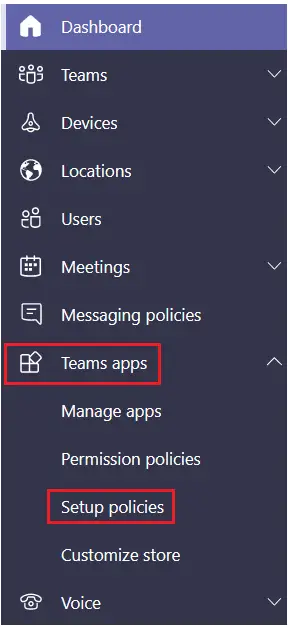
  • Within the team’s admin center, over on the left hand side, click on teams apps within that grouping. You will see an option for set policies.
walkie talkie in microsoft teams
  • This opens up the policy view. We now have to choose a policy that we want to apply the walkie talkie to.
  • Once you choose that on the next screen, make sure to enable “Allow user pinning“.
  • Down below, click on Add apps under Pinned apps.
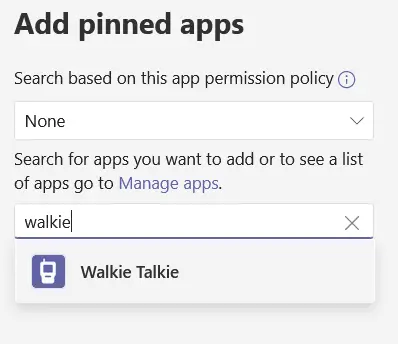
  • This open up on the right hand side and you can search for walkie talkie. Once you find it, click on Add.
  • The Walkie Talkie app should now appear on the Pinned Apps list, and be available for use once you click the Save button.

Use Walkie Talkie in Microsoft Teams

  • It will take about 48 hours for this change to propagate. Now that we have walkie talkie turned on, let’s test this out.
  • Open up the Microsoft Teams app. At the very bottom, click on the more icon and you should see an option for walkie talkie.
  • Now, if you want to make this part of the top set, you can click on the reorder link. I’m going to leave it where it is for now.
  • I will click into the walkie talkie. I see a list of all of my different teams and also channels.
  • A channel basically serves as a room where you can chat with others via walkie talkie.
  • You can only be connected to one room at a time. I’m going to join the factory floor and we could check in on what’s happening there.
  • It prompts me to connect. I will click on Connect.
  • Anyone who wants to join the walkie talkie session has to go through this same exact flow. Now that I’ve connected.
  • In the top right hand corner, I can see that there are 3 other people in this room. If I click on the people icon, I can see all the people who are currently in this channel.
  • All right, let’s click the mic to connect and test this out.

Network documentation

Walkie Talkie in Teams requires Internet connectivity and below the network conditions are required for optimal experience.

As noted above, the quality of real-time media over an IP network is greatly impacted by the quality of the network connectivity, but especially by the amount of:

  • Latency â€“ This is the time it takes to get an IP packet from point A to point B on the network. This network propagation delay is essentially tied to physical distance between the two points and the speed of light, including more overhead taken by the various routers in between. Latency is measured as Round-trip Time (RTT).
  • Inter-Arrival Jitter â€“ This is the average change in delay between successive packets.
  • Packet Loss â€“ This is often defined as a percentage of packets that are lost in a given window of time. Packet loss directly affects audio quality—from small, individual lost packets having almost no impact, to back-to-back burst losses that cause complete audio cut-out.

Expected data usage from Walkie Talkie is around 20 Kb/s when sending or receiving audio. When idle, expected data usage from Walkie Talkie is negligible.

Walkie Talkie devices

Frontline workers often need to speak and receive Walkie Talkie calls even when their phones are locked. This experience is possible through specialized devices with a dedicated PTT button.

Note: These devices are not Teams certified. They have been validated to work with Teams Walkie Talkie.

License requirements

Walkie Talkie app is included in all paid licenses of Teams in Microsoft 365 subscriptions.

Note: Certain advanced features may require additional licensing. For example, integration with Samsung Galaxy XCover Pro requires a Knox license.

Further information

  • IT Admins can maintain control over who is using Walkie Talkie through App Policies.
  • If your frontline worker is using mobile data to communicate via Teams, Walkie Talkie will use the same method.
  • Walkie Talkie should work well in low bandwidth situations, or situations where your smartphone is connected and working. Walkie Talkie will not work when there is no connectivity at all.

Posted in HOW TO, Teams | Leave a Comment »

How To Series: Teams Auto Attendants

Posted by Koop on February 3, 2023

Auto attendants are a crucial aspect of any PBX system for teams, as they handle the first point of contact for incoming calls. Here are some tips to manage auto attendants in Teams PBX, along with steps on how to configure an auto attendant:

Steps to configure an auto attendant in Teams PBX:

Log into the Teams admin center
Click on Voice, then Auto Attendants
Click on the "+" button to create a new auto attendant
Choose the type of auto attendant you want to create, such as a main auto attendant or department auto attendant
Configure the call routing options, such as call forwarding or voice mail
Record a greeting for the auto attendant
Save the changes and test the auto attendant to make sure it's working correctly.

Here are some tips on best practice with auto attendants:

1. Set up a call routing structure: Decide how calls should be routed based on the caller's input and set up the appropriate options in the auto attendant.
2. Customize greetings: Record a professional greeting for the auto attendant to provide a warm welcome to callers.
3. Configure call forwarding: Set up call forwarding rules for different departments or extensions, so calls can be redirected to the right person or team.
4. Create multiple auto attendants: Create separate auto attendants for different departments or branches, if necessary.
5. Monitor call logs: Regularly check call logs to see how many calls are being handled by the auto attendant and which options are being selected most frequently.
6. Update regularly: Keep the auto attendant updated with the latest information and changes in your organization.
7. Test regularly: Regularly test the auto attendant to ensure it is functioning correctly and to identify any areas that need improvement.

By following these tips, you can effectively manage your auto attendants in Teams PBX and provide a seamless and professional experience for your callers.

Posted in HOW TO, Teams | Leave a Comment »

How to series: How to make conference meetings within Teams PBX

Posted by Koop on February 1, 2023

Teams PBX is a powerful communication tool that allows you to make voice and video calls, instant messages, and conduct virtual meetings with ease. One of the most useful features of Teams PBX is the ability to make conference calls. Here’s how you can make a conference call within Teams PBX:

Step 1: Prepare Your Device

Before you start the conference call, make sure that you have the latest version of Teams installed on your device. You’ll also need a microphone, speakers, or a headset to make the call. If you’re using a laptop, make sure that it’s connected to a reliable internet connection.

Step 2: Schedule the Conference Call

You can schedule a conference call in Teams by creating a new meeting. To do this, click on the “Meetings” button on the Teams toolbar, then click on “New Meeting.” Set the date and time for the meeting, and invite the participants you want to join the call.

Step 3: Join the Conference Call

When it’s time for the meeting, open Teams and click on the “Meetings” button. You’ll see a list of all the upcoming meetings you have scheduled. Click on the meeting you want to join, and then click “Join.”

Step 4: Add Participants

Once you’re in the call, you can add participants by clicking on the “Participants” button in the Teams toolbar. You can invite participants by typing their email address or selecting them from the contacts list. Once they join the call, they’ll appear in the Participants list.

Step 5: Conduct the Conference Call

You can conduct the conference call just like any other call in Teams. You can use the microphone to speak and the speakers or headset to listen. Teams also offers the ability to share your screen, making it easy to present slides or other materials.

Step 6: End the Conference Call

When the call is over, you can end the conference call by clicking on the “End Call” button in the Teams toolbar. This will end the call for all participants.

In conclusion, making a conference call within Teams PBX is a simple and straightforward process. By following these steps, you’ll be able to conduct effective virtual meetings with ease.

Posted in HOW TO, Teams | Leave a Comment »

HOW TO Series: Forwarding user calls to another number within Teams PBX

Posted by Koop on February 1, 2023

Here is blog posts that I have written in a HOW TO series for Teams PBX.

To forward calls within a PBX system using Teams, you can follow these steps:

  1. Open the Teams app and sign in to your account.
  2. Go to the Calls tab and click on the Call Forwarding button.
  3. Turn on the Call Forwarding toggle switch.
  4. Select the Forward my calls to option and choose the desired recipient from your Teams contacts.
  5. If you want to set specific conditions for call forwarding, such as only forwarding calls when you’re unavailable or busy, select the corresponding option.
  6. Save the changes.
  7. Test the call forwarding by calling your Teams number from another device.

Note: If you need further assistance, feel free to open a ticket with COMPANY and our voice engineers will assist you further.

Posted in HOW TO, Teams | Leave a Comment »