While I was waiting for my kids to get dressed, I fired up my computer and did some routine tasks. One of the things that I noticed is that there were tasks sitting in the unassigned queue. I had the time to assign the tasks, so I did but I didn’t want to bother my employees about tasks that can be worked on monday; today. So I used the schedule message send feature. I never used it before, so I must say, I like it so far.
When you send a message within teams, you can right click the send icon (The little paper plane) and an option pops up to send at a schedule time. For me, one employee got scheduled a message for 8:30 monday morning and the other employee was scheduled at 9:30 monday morning. I now will have my messages go out and not have to worry about annoying people over the weekend.
As part of 2023, it is my role to move all files to move from disparaged systems and have all files live within Teams/Sharepoint. This has been an interesting process and my company is slowly adopting it. The one thing that I’ve run into is when you try to open the file when browsing it from teams. The biggest issue is that when someone chats you, in order to read the chat, you have to close the file that you had open. Bummer.
With that being said, you can tell teams to open the file automatically using the application like Word or Excel as opposed to opening the file within Teams. You can do this by doing the following:
Settings -> Files and Links -> File open preference -> Desktop App
I got an email today asking if I wanted to attend a webinar on the Tips and Tricks for MS teams. Here are the 5 highlights:
🟣 How to access content quickly with advanced search
🟣 Create tasks directly from conversations
🟣 Use your mobile as an additional display
🟣 Even bring important updates into your workspace
The webinar is on March 21st and I am looking forward to attending. The bullet that most interests me on this list is the ability to use my mobile as an additional display. I know that this is possible to do with a mac, but I am curious as to how they are going to enrich that experience within Teams
If you are interested in attending the webinar, hosted by Ribbn, feel free to drop a comment and I can share the link with you.
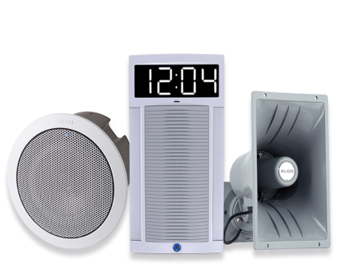
I have a client looking to integrate their overhead pager within teams. We reviewed the current paging technology in teams with the Walkie Talkie but it did not provide enough functionality that the client was looking for. In doing research, we ran across a company called Algo. They have an integration with overhead paging but it requires direct routing within Teams. I obviously support this, but they also mentioned reviewing the following microsoft page. I thought that this was odd as I’ve read this page a few times but noticed the following section after they mentioned it:
SIP Gateway overhead paging devices support SIP Gateway will support overhead paging devices by early 2023, allowing you to use Teams calling functionality on pagers, ringers, and speakers while in noisy environments such as manufacturing plants. We will soon share more details about compatible device models from Algo. Learn more about planning for and configuring SIP Gateway in your organization.
This is exactly what we are looking for but the only problem is that Q1 of 2023 is almost over and the integration is still not out. I will share how the direct routing experiance goes, or if we wait until the direct integration is setup. Time will tell.
This is an exciting time for overhead pagers, said virtually no one ever! 🙂
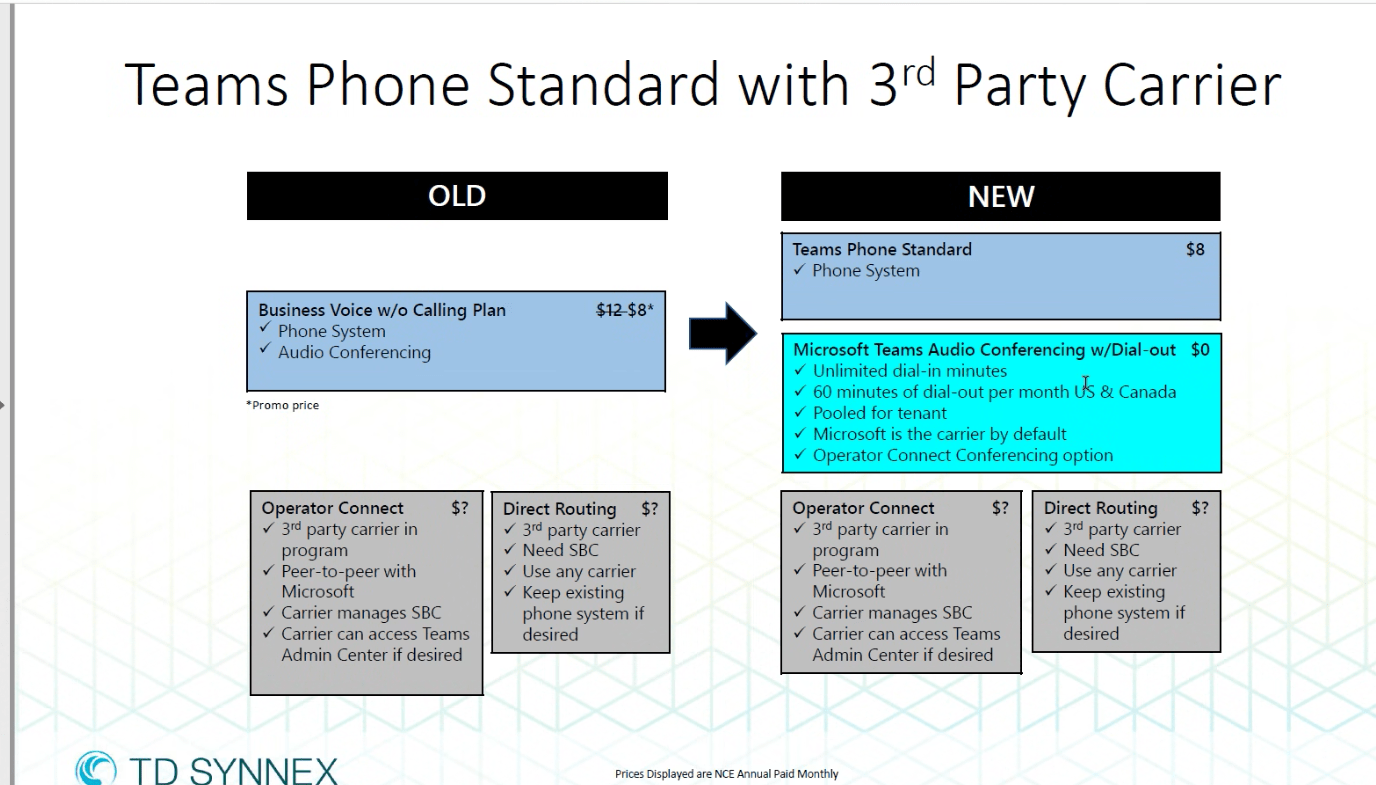
I am not sure when it happened, but as I go to renew the licensing within Microsoft 365, we have noticed that several of the teams phone system licenses have changed names and other are being depreciated. My company uses Synnex to process our licensing, and they published this nice nifty little guide.
Most of the licensing that I had ordered was Business Voice w/o calling plan. This was used for Teams Direct Routing. This is now being replaced with Teams Phone Standard license and apparently another license that is a 0 cost item to allow for Audio Conferencing.
Microsoft also changed the resource account licensing to an easier name as well. This is called Teams Resource Account as opposed to Virtual Teams user. This is also a 0 cost line item. You need this license for your autoattendants and Call queues.
I now have the excitement of changing about 1000 licenses from Business Voice to Teams Phone Standard. I am assuming nothing will break by swapping the license, but time will tell. Remember, it takes Teams up to 24 hours to acknowledge a change, and when people lose their licensing, they lose their phone number. I’m fairly sure that programming won’t get wiped away by changing licensing…but time will tell! No update means everything went just fine….I promise!
I was having a mental block on today’s blog post, so I thought I would ask Chat GPT what it thought on the Teams Phone System. I asked it what were the 5 main features that stand out over the competition. It provided the following:
Call Routing and Transfer: With the Teams Phone System, users can easily route incoming calls to specific individuals or departments within their organization. They can also transfer calls to other team members or external contacts, making it easy to manage call traffic and ensure that customers and partners are connected with the right people.
Voicemail: Teams Phone System includes a voicemail feature, which allows users to leave messages for others who are unavailable to take their calls. Users can receive voicemail messages as an email attachment, making it easy to keep track of missed calls and respond to important messages in a timely manner.
Call Analytics: Teams Phone System offers powerful analytics tools that allow administrators to track call volumes, monitor call quality, and gain insights into how their teams are using the system. This information can help organizations make data-driven decisions to optimize their communication processes and improve customer service.
Auto Attendant: The Auto Attendant feature of Teams Phone System allows organizations to create custom call menus and greetings to route incoming calls to the appropriate departments or individuals. This feature can help to improve customer satisfaction by ensuring that callers are directed to the right people and given the information they need quickly and efficiently.
Emergency Calling: Teams Phone System includes an emergency calling feature, which allows users to dial emergency services directly from their Teams client. The system automatically sends the caller’s location to emergency services, ensuring that help can be dispatched quickly and accurately.
Now, I am not very impressed with this list. Any VoIP system can do points 1, 4, and 5. I would even argue that other platforms do these features BETTER than teams. Voicemail within teams is very nice and is a good selling point. The voicemail gets transcribed instantly and you can view the transcription through teams or outlook. As far as advanced call analytics go, I know that Teams logs all that information, but I don’t find clients appetitite to mine that information all too much. So now, lets highlight my list.
Voicemail. We agree with the statements above.
Integration with other 365 platforms. Seemless integration with Outlook is darn right amazing.
Cost. In my experience, Teams Phone System tends to be cheaper if you already have a 365 subscription.
Remove the requirement of having physical phones. Granted, you can still have your physical phone, but Teams has moved away from the reliance of a physical handset
Mobility. The ability to seamlessly transfer a call from device to device depending on where I am is very powerful.
So, to drill this home, sometimes, the AI is a cool tool, but it is not always right 🙂
When you’re using Microsoft Teams Direct Routing as your primary calling solution, chances are that sometimes you also need to permanently forward calls to one of your numbers to another external phone number.
Forwarding by a Licensed Teams User
Setting up a forwarding of numbers can be achieved in multiple ways. The most obvious one to just create and license a Teams user and setup a permanent call forwarding for that user in the Teams Client.
The user needs a Business Basic + Teams Phone Standard License. You cannot use a Common Area Phone.
Since there is no voice app like an auto attendant or call queue involved in this scenario, all calls to the direct number of this particular user will be forwarded right away. This also means that the caller will hear the ring back tone, until the external participant (forwaring target) answers the call.
Advantages:
Direct forwarding, call does not get picked up or intercepted by Teams
Good for scenarios where the forwarding target often changes. This allows users to change the number without needing a Teams Administrator to make a change
Disadvantages:
License costs
Configuration can only be reviewed or changed by logging in to the user
Can’t use Service or Toll-Free numbers
Forwarding by a Resource Account
It’s also possible to transfer calls to external PSTN numbers by using resource accounts assigned to auto attendants or call queues. Before you can assign a number to a resource account, you need to assign a free Teams Phone Standard — Virtual User License to the resource account.
Once the license is assigned, we need to assign a phone number to the resource account:
For my test, I setup a auto attendant without business hours so it will always perform the same action: forward the call to an external number. This works but the autoattendant picks up the call causing a pause in the phone call. This would not work if the forward was for a FAX number.
Since it’s also possible to forward calls from a call queue to an external number, we can leverage this to create a similar experience as to when the call is permanently forwarded by a Teams user.
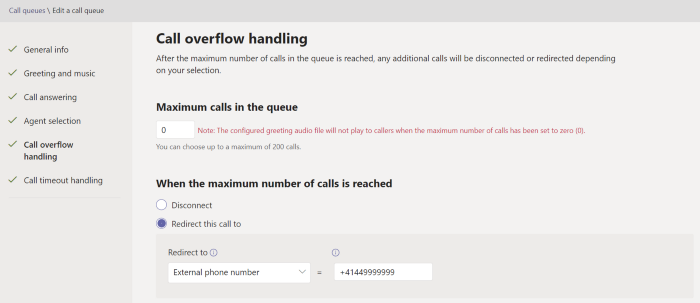
A call queue has two options to control actions or forwardings. Overflow (max. number of simultaneous calls) or timeout.
If we set the timeout to zero (0 minutes, 0 seconds) the queue still answers the call, before it’s forwarded. Even if there is no greeting configured.
A good example to see that the queue picked up the call is that the counter starts on any phone. Here I’m using Skype to call the call queue and you can see that the call has been established for 5 seconds, even though the configured forwarding target has not answered the call yet. While the call rings the forwarding target, Teams will generate a ring back tone inside the already established call.
If we set the overflow threshold of the queue to zero on the other hand, TAC shows a warning message that the queue won’t play the greeting when the overflow threshold is set to 0.
Advantages:
No License costs
Can use Service or Toll-Free numbers
FAX calls will work if using a call queue
Disadvantages:
Only Teams admins can change the forwarding target
Summary
Even though it might not be an obvious solution, using a call queue to permanently forward calls is still a great way to have more control over all your DIDs right inside Teams itself without adding any license costs.
I have a client that currently uses a Valcom VIP-801A Paging Gateway which at initial glance does not have a direct integration with Teams PBX. I have explored the Walkie Talkie feature, but that does not integrate with the existing pager. You could do something fancy with an iPad and a bluetooth overhead pager but this paging unit feels like it is older than I am. It is an analog overhead pager unit and I still have nightmares when I set it up back in 2017. This leaves me with the following options:
Replace it with some sort of bluetooth paging unit that can integrate with a tablet. This would support Walkie Talkie integration within teams and we are done
Leave it alone and leave physical phones that is hooked up to the old integration that is now dedicated to paging.
Buy CCX phones that integrate within teams but in order to use the paging unit, you have to switch profiles from teams to “paging” profile. The paging profile is just a SIP profile.
Throw out the overhead pager. They are dumb 🙂
Option 3 is dumb. No one is going to take the time to log off the phone, reboot it, then perform a page then reboot the phone again. I am confused that this is even an option with these phones. The purpose of the paging unit is that it is quick and simple. Nothing is quick and simple with option 3.
Option 2 makes the most sense. There is little overhead with leaving the existing system in place and most users would use either their cell phone or computer for teams. Most users tend to not use the physical phones if that is an option. The downside of this is that there are phones on people’s desks that they cannot use to make phone calls. These phones would be dedicated to making overhead pages.
Option 1 is not likely. These overhead paging units are built into the ceiling and very difficult to get to. They also do not have physical power typically so a bluetooth paging unit would need to have electrical done in order to install it. I find that most companies that have an overhead paging unit tend to not have the investment capital to modernize their overhead paging unit especially when the existing one “works.” Works is a bit of a stretch since it doesn’t actually work with modern equipment. This is like saying why would I get rid of my tape player when it plays music just fine. I don’t need to steam music and play any song I can think of with a few clicks of the mouse or a quick voice command. Tape players just work!
My client is choosing option 4 since they are less in the office and more remote. They found that the paging unit stopped functioning well for their pandemic changed business requirements. If you have come across another option on how to integrate with teams, I would love to know. I do work with these dinosaurs about once a year or so, so while I have exposure to them, it is not as much as other telecommunication technologies.
A company appoached and inquired if you can do paging within Microsoft Teams. I honestly didn’t know the answer so I did a little bit of research and came across Walkie Talkie. It is an app within teams that allows you to create Paging groups. The only downside that I’ve seen so far is that it only allows you to use this feature on your cell phone and not on the desktop and physical phones.
I know with Polycom physical phones, it is likely possible to enable this. The only downside would be that the pages would only work within the network. With Walkie Talkie, I was paging people that worked out of Arizona from my house in CT.
Enable Walkie Talkie in Microsoft Teams
Before you can use walkie talkie, you have to make sure that it’s enabled in your tenant.
Once you log in, over on the left hand side, click into the admin center.
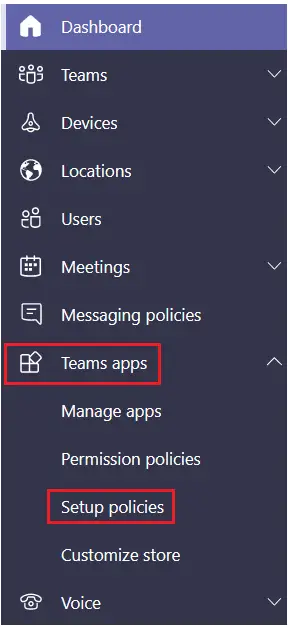
Once the admin center loads up, over on the left hand side, click into the team’s admin center.
Within the team’s admin center, over on the left hand side, click on teams apps within that grouping. You will see an option for set policies.
This opens up the policy view. We now have to choose a policy that we want to apply the walkie talkie to.
Once you choose that on the next screen, make sure to enable “Allow user pinning“.
Down below, click on Add apps under Pinned apps.
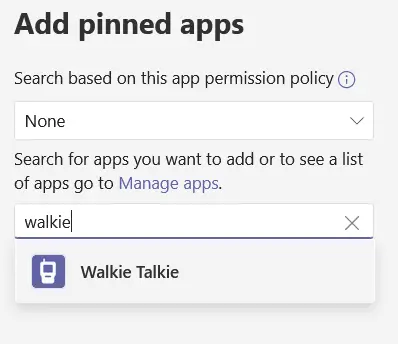
This open up on the right hand side and you can search for walkie talkie. Once you find it, click on Add.
The Walkie Talkie app should now appear on the Pinned Apps list, and be available for use once you click the Save button.
Use Walkie Talkie in Microsoft Teams
It will take about 48 hours for this change to propagate. Now that we have walkie talkie turned on, let’s test this out.
Open up the Microsoft Teams app. At the very bottom, click on the more icon and you should see an option for walkie talkie.
Now, if you want to make this part of the top set, you can click on the reorder link. I’m going to leave it where it is for now.
I will click into the walkie talkie. I see a list of all of my different teams and also channels.
A channel basically serves as a room where you can chat with others via walkie talkie.
You can only be connected to one room at a time. I’m going to join the factory floor and we could check in on what’s happening there.
It prompts me to connect. I will click on Connect.
Anyone who wants to join the walkie talkie session has to go through this same exact flow. Now that I’ve connected.
In the top right hand corner, I can see that there are 3 other people in this room. If I click on the people icon, I can see all the people who are currently in this channel.
All right, let’s click the mic to connect and test this out.
Network documentation
Walkie Talkie in Teams requires Internet connectivity and below the network conditions are required for optimal experience.
As noted above, the quality of real-time media over an IP network is greatly impacted by the quality of the network connectivity, but especially by the amount of:
Latency – This is the time it takes to get an IP packet from point A to point B on the network. This network propagation delay is essentially tied to physical distance between the two points and the speed of light, including more overhead taken by the various routers in between. Latency is measured as Round-trip Time (RTT).
Inter-Arrival Jitter – This is the average change in delay between successive packets.
Packet Loss – This is often defined as a percentage of packets that are lost in a given window of time. Packet loss directly affects audio quality—from small, individual lost packets having almost no impact, to back-to-back burst losses that cause complete audio cut-out.
Expected data usage from Walkie Talkie is around 20 Kb/s when sending or receiving audio. When idle, expected data usage from Walkie Talkie is negligible.
Walkie Talkie devices
Frontline workers often need to speak and receive Walkie Talkie calls even when their phones are locked. This experience is possible through specialized devices with a dedicated PTT button.
Manual setup – With Teams installed, navigate to Settings > Advanced Features > XCover/Active key. Turn on ‘Control XCover key with app’ and select ‘Teams’
Note: Certain advanced features may require additional licensing. For example, integration with Samsung Galaxy XCover Pro requires a Knox license.
Further information
IT Admins can maintain control over who is using Walkie Talkie through App Policies.
If your frontline worker is using mobile data to communicate via Teams, Walkie Talkie will use the same method.
Walkie Talkie should work well in low bandwidth situations, or situations where your smartphone is connected and working. Walkie Talkie will not work when there is no connectivity at all.
As per the Microsoft Teams blog post on Direct Routing for Teams, the following SBCs (Session Border Controllers) are supported:
Audiocodes
Fortinet
Oracle
Ribbon Sonus
Cisco
Avaya
TE Systems Anynode
It is important to note that the list of supported SBCs may change over time, and it’s best to check with Microsoft for the most up-to-date information on supported SBCs for Direct Routing for Teams. Here is the link to where Microsoft keeps the list up to date:
As for me, I have personal exeriance with Audiocodes, Sonus, and Anynode SBCs. I attempted to integrate teams with a 900e Audiocodes but I have over 100 endpoints integrated with Audiocodes and the requirements for teams would likely break the other endpoints. Since I had a relationship with Anynode, we made the decision to do direct routing with anynode for our Teams implementation. I have been using Anynode with Teams Direct Routing for over a year now and have had very little problems with it.







 Blog posts about Fax and Voice