
Archive for February, 2023
Paging within Teams: Walkie Talkie
Posted by Koop on February 10, 2023
A company appoached and inquired if you can do paging within Microsoft Teams. I honestly didn’t know the answer so I did a little bit of research and came across Walkie Talkie. It is an app within teams that allows you to create Paging groups. The only downside that I’ve seen so far is that it only allows you to use this feature on your cell phone and not on the desktop and physical phones.
I know with Polycom physical phones, it is likely possible to enable this. The only downside would be that the pages would only work within the network. With Walkie Talkie, I was paging people that worked out of Arizona from my house in CT.
Enable Walkie Talkie in Microsoft Teams
Before you can use walkie talkie, you have to make sure that it’s enabled in your tenant.
- Go to office portal.
- Once you log in, over on the left hand side, click into the admin center.
- Once the admin center loads up, over on the left hand side, click into the team’s admin center.
- Within the team’s admin center, over on the left hand side, click on teams apps within that grouping. You will see an option for set policies.
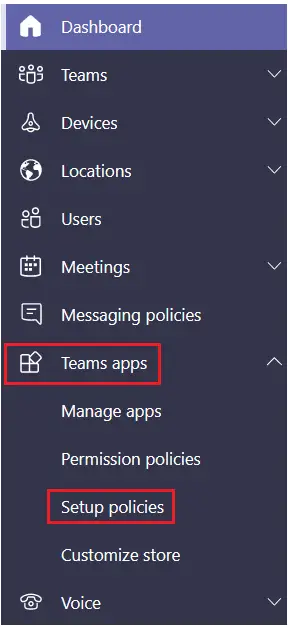
- This opens up the policy view. We now have to choose a policy that we want to apply the walkie talkie to.

- Once you choose that on the next screen, make sure to enable “Allow user pinning“.

- Down below, click on Add apps under Pinned apps.

- This open up on the right hand side and you can search for walkie talkie. Once you find it, click on Add.
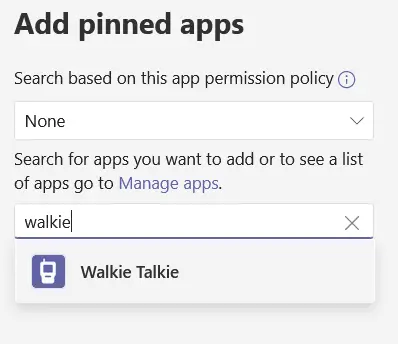
- The Walkie Talkie app should now appear on the Pinned Apps list, and be available for use once you click the Save button.

Use Walkie Talkie in Microsoft Teams
- It will take about 48 hours for this change to propagate. Now that we have walkie talkie turned on, let’s test this out.
- Open up the Microsoft Teams app. At the very bottom, click on the more icon and you should see an option for walkie talkie.

- Now, if you want to make this part of the top set, you can click on the reorder link. I’m going to leave it where it is for now.
- I will click into the walkie talkie. I see a list of all of my different teams and also channels.
- A channel basically serves as a room where you can chat with others via walkie talkie.
- You can only be connected to one room at a time. I’m going to join the factory floor and we could check in on what’s happening there.

- It prompts me to connect. I will click on Connect.

- Anyone who wants to join the walkie talkie session has to go through this same exact flow. Now that I’ve connected.
- In the top right hand corner, I can see that there are 3 other people in this room. If I click on the people icon, I can see all the people who are currently in this channel.

- All right, let’s click the mic to connect and test this out.

Network documentation
Walkie Talkie in Teams requires Internet connectivity and below the network conditions are required for optimal experience.

As noted above, the quality of real-time media over an IP network is greatly impacted by the quality of the network connectivity, but especially by the amount of:
- Latency – This is the time it takes to get an IP packet from point A to point B on the network. This network propagation delay is essentially tied to physical distance between the two points and the speed of light, including more overhead taken by the various routers in between. Latency is measured as Round-trip Time (RTT).
- Inter-Arrival Jitter – This is the average change in delay between successive packets.
- Packet Loss – This is often defined as a percentage of packets that are lost in a given window of time. Packet loss directly affects audio quality—from small, individual lost packets having almost no impact, to back-to-back burst losses that cause complete audio cut-out.
Expected data usage from Walkie Talkie is around 20 Kb/s when sending or receiving audio. When idle, expected data usage from Walkie Talkie is negligible.
Walkie Talkie devices
Frontline workers often need to speak and receive Walkie Talkie calls even when their phones are locked. This experience is possible through specialized devices with a dedicated PTT button.
- Headsets
- Wireless headsets
- Wired headsets
- Rugged phones
- Samsung Galaxy XCover Pro, Galaxy XCover 5, Galaxy Tab Active 3
- Manual setup – With Teams installed, navigate to Settings > Advanced Features > XCover/Active key. Turn on ‘Control XCover key with app’ and select ‘Teams’
- MDM setup
- Samsung Galaxy XCover Pro, Galaxy XCover 5, Galaxy Tab Active 3
Note: These devices are not Teams certified. They have been validated to work with Teams Walkie Talkie.
License requirements
Walkie Talkie app is included in all paid licenses of Teams in Microsoft 365 subscriptions.
Note: Certain advanced features may require additional licensing. For example, integration with Samsung Galaxy XCover Pro requires a Knox license.
Further information
- IT Admins can maintain control over who is using Walkie Talkie through App Policies.
- If your frontline worker is using mobile data to communicate via Teams, Walkie Talkie will use the same method.
- Walkie Talkie should work well in low bandwidth situations, or situations where your smartphone is connected and working. Walkie Talkie will not work when there is no connectivity at all.
Posted in HOW TO, Teams | Leave a Comment »
SBCs with Teams Direct Routing
Posted by Koop on February 10, 2023
As per the Microsoft Teams blog post on Direct Routing for Teams, the following SBCs (Session Border Controllers) are supported:
- Audiocodes
- Fortinet
- Oracle
- Ribbon Sonus
- Cisco
- Avaya
- TE Systems Anynode
It is important to note that the list of supported SBCs may change over time, and it’s best to check with Microsoft for the most up-to-date information on supported SBCs for Direct Routing for Teams. Here is the link to where Microsoft keeps the list up to date:
https://learn.microsoft.com/en-us/microsoftteams/direct-routing-border-controllers
As for me, I have personal exeriance with Audiocodes, Sonus, and Anynode SBCs. I attempted to integrate teams with a 900e Audiocodes but I have over 100 endpoints integrated with Audiocodes and the requirements for teams would likely break the other endpoints. Since I had a relationship with Anynode, we made the decision to do direct routing with anynode for our Teams implementation. I have been using Anynode with Teams Direct Routing for over a year now and have had very little problems with it.
Posted in SBC, Teams | Leave a Comment »
Integration Series: RightFax + Searchable PDF
Posted by Koop on February 9, 2023
The Searchable PDF module in RightFax is a powerful tool that provides several benefits to organizations of all sizes. You have to buy the module in order to use it, so keep that in mind. Here are some of the key benefits of using the Searchable PDF module in RightFax:
- Improved Document Search: The Searchable PDF module allows you to search for specific information within your faxes, which can save you time and improve productivity. The module uses optical character recognition (OCR) technology to turn scanned images into text-searchable PDFs.
- Increased Accessibility: With the Searchable PDF module, you can easily access important information within your faxes, even if they are stored on remote servers or in the cloud. This makes it easy to share information with colleagues and stakeholders, regardless of their location.
- Better Document Management: The Searchable PDF module helps you manage your faxes more effectively by making it easier to find specific information. This can help you stay organized and reduce the risk of important information being lost or forgotten.
In conclusion, the Searchable PDF module in RightFax is a valuable tool for organizations that want to improve document search, accessibility, management, security, and compliance. Whether you are a small business or a large corporation, the Searchable PDF module can help streamline your operations and keep your information safe and secure.
Posted in FAX, Integration Series, RightFax | Leave a Comment »
Integration series: RightFax + FileNet
Posted by Koop on February 9, 2023
One of the more interesting integrations that I have done is the RightFax Integration with FileNet. Integrating RightFax with FileNet, a content management and document capture platform, provides organizations with a powerful solution for managing and automating their document-driven business processes.
The integration of RightFax and FileNet enables organizations to automatically route incoming and outgoing faxes to the appropriate content repositories within FileNet. This improves document management by eliminating manual intervention and reducing the risk of errors associated with manual filing. Additionally, the integration provides a secure and auditable method of exchanging sensitive information, such as contracts and medical records, between organizations.
RightFax and FileNet integration also supports the automation of business processes, such as invoicing and purchase order processing. By using FileNet’s document capture capabilities, organizations can automatically extract data from incoming faxes and route them to the appropriate process or system for further processing. This results in faster and more accurate processing of documents, reducing the time and costs associated with manual data entry.
The integration of RightFax and FileNet can also support compliance requirements by providing a secure and auditable method of exchanging sensitive information. The ability to track and monitor the flow of information through the system ensures that all documents are handled in accordance with organizational policies and regulatory requirements.
In conclusion, integrating RightFax with FileNet provides organizations with a powerful solution for managing and automating their document-driven business processes. By eliminating manual intervention, automating business processes, and providing a secure and auditable method of exchanging sensitive information, organizations can improve efficiency, reduce costs, and ensure compliance with regulatory requirements.
Feel free to reach out if your organization is still using the FileNet integration. Most of my customers have depreciated the integration but I still have fond memories of getting this integration to work with RightFax.
Posted in FAX, Integration Series, RightFax | Leave a Comment »
Windows Whiteboard; how to share whiteboards via Teams
Posted by Koop on February 8, 2023
I will honestly say, for a feature that has been in the product for over a month, none of my colleagues were aware of the feature. It didn’t take a lot of time to figure out how to use whiteboards within teams, but we have found the following ways of using it.
- Tab in a channel/user
- Hit the + in the channel that you want to add the whiteboard
- Select Whiteboard in the Add a tab option
- Thats it 🙂
- Share directly in a meeting
- During a meeting, hit share and select Whiteboard

I’ll be honest, I do not see me using the tab option very often but so far, have found using the share during a meeting option very appealing. I can see my team collaborating with the whiteboard while we are reviewing complicated networking issues. I have run this by several people and everyone was initially impressed with how powerful the whiteboard feature is.
Posted in Teams, Whiteboard | Leave a Comment »
Windows whiteboard. What is it and how can I use it?
Posted by Koop on February 8, 2023
While reviewing the new features within teams, I read that Teams can embed Windows Whiteboard within the Teams App. Apparently I am late to the party as I am just hearing about this tool now. Windows Whiteboard is a digital whiteboarding tool that comes built into Windows 10. It allows teams to collaborate and brainstorm in real-time from anywhere, making it easier for remote teams to work together. In this blog post, we will explore what Windows Whiteboard is and how companies can use it to increase productivity.
What is Windows Whiteboard?
Windows Whiteboard is a digital whiteboarding tool that allows users to draw, write, and collaborate on a virtual whiteboard. The whiteboard can be accessed from any device that runs Windows 10, making it easy for teams to collaborate no matter where they are located. Teams can also save and organize their whiteboards, making it easy to revisit and reference them later.
How can companies use Windows Whiteboard to increase productivity?
- Remote Collaboration: Teams can work together on a whiteboard from different locations, making it easier for remote teams to collaborate.
- Real-time Collaboration: Multiple team members can draw, write, and make changes to the whiteboard in real-time, making it a dynamic tool for brainstorming and problem-solving.
- Improved Communication: Windows Whiteboard enables teams to communicate visually, making it easier to share ideas and concepts, reducing the time it takes to explain complex ideas.
- Better Organization: Teams can save and organize their whiteboards, making it easy to revisit and reference them later.
- Accessibility: Windows Whiteboard is accessible to all Windows 10 users, making it a cost-effective tool for teams.
In conclusion, Windows Whiteboard is a powerful tool that can greatly benefit companies by improving collaboration, communication, and productivity. By using this tool, teams can work together more effectively, even when they are not in the same place, and can communicate complex ideas more quickly and efficiently. I am going to try to make an added effort to use this tool within my meetings and see if I can harness the power that this tool can provide.
Posted in Teams, Whiteboard | Leave a Comment »
Why Teams PBX over Legacy PBX
Posted by Koop on February 7, 2023
Since the pandemic, I have seen a trend to move towards “the new age PBX systems” over the more traditional/legacy PBX. Traditional PBX systems function where you have a phone by your desk and you use it to make and receive phone calls. Team phone systems, also known as cloud-based or virtual phone systems, offer a number of benefits over traditional phone systems. These benefits include:
- Increased mobility: With a team phone system, employees can access the system from anywhere, as long as they have an internet connection. This allows for increased flexibility and mobility, as employees can work from home, on the road, or at any remote location.
- Improved collaboration: Team phone systems offer features such as group call conferencing, call forwarding, and call transfers, which enhance collaboration and communication between team members.
- Lower costs: Compared to traditional phone systems, team phone systems are often more cost-effective, as they do not require expensive hardware or installation fees. Additionally, many team phone systems offer unlimited calling and low per-user monthly fees.
- Scalability: Team phone systems can easily scale up or down to accommodate changes in your organization, such as adding new employees or expanding to new locations.
- Enhanced features: Many team phone systems offer advanced features, such as call analytics, automated call routing, and integration with other business tools like CRM software.
In conclusion, a team phone system is like opening a Genie out of the lamp. The platform can offer numerous benefits over a traditional phone system, including increased mobility, improved collaboration, lower costs, scalability, enhanced features, increased efficiency, and improved customer service much better than the traditional or legacy PBX can provide.
Posted in Teams | Leave a Comment »
RightFax Services will not start after setting TLS 1.2
Posted by Koop on February 6, 2023
Posted in RightFax | Leave a Comment »
Sunrise off the water in Stratford CT
Posted by Koop on February 5, 2023
Enjoying the view in Stratford

Posted in photos | Leave a Comment »
 Blog posts about Fax and Voice