Paging within Teams: Walkie Talkie
Posted by Koop on February 10, 2023
A company appoached and inquired if you can do paging within Microsoft Teams. I honestly didn’t know the answer so I did a little bit of research and came across Walkie Talkie. It is an app within teams that allows you to create Paging groups. The only downside that I’ve seen so far is that it only allows you to use this feature on your cell phone and not on the desktop and physical phones.
I know with Polycom physical phones, it is likely possible to enable this. The only downside would be that the pages would only work within the network. With Walkie Talkie, I was paging people that worked out of Arizona from my house in CT.
Enable Walkie Talkie in Microsoft Teams
Before you can use walkie talkie, you have to make sure that it’s enabled in your tenant.
- Go to office portal.
- Once you log in, over on the left hand side, click into the admin center.
- Once the admin center loads up, over on the left hand side, click into the team’s admin center.
- Within the team’s admin center, over on the left hand side, click on teams apps within that grouping. You will see an option for set policies.
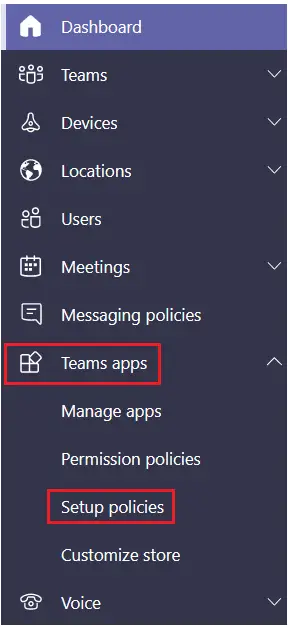
- This opens up the policy view. We now have to choose a policy that we want to apply the walkie talkie to.

- Once you choose that on the next screen, make sure to enable “Allow user pinning“.

- Down below, click on Add apps under Pinned apps.

- This open up on the right hand side and you can search for walkie talkie. Once you find it, click on Add.
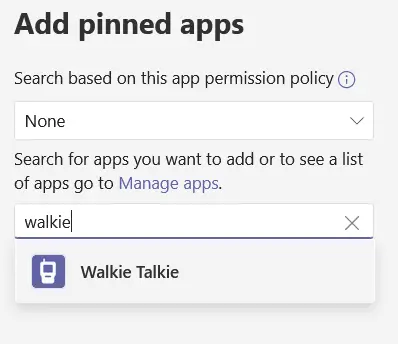
- The Walkie Talkie app should now appear on the Pinned Apps list, and be available for use once you click the Save button.

Use Walkie Talkie in Microsoft Teams
- It will take about 48 hours for this change to propagate. Now that we have walkie talkie turned on, let’s test this out.
- Open up the Microsoft Teams app. At the very bottom, click on the more icon and you should see an option for walkie talkie.

- Now, if you want to make this part of the top set, you can click on the reorder link. I’m going to leave it where it is for now.
- I will click into the walkie talkie. I see a list of all of my different teams and also channels.
- A channel basically serves as a room where you can chat with others via walkie talkie.
- You can only be connected to one room at a time. I’m going to join the factory floor and we could check in on what’s happening there.

- It prompts me to connect. I will click on Connect.

- Anyone who wants to join the walkie talkie session has to go through this same exact flow. Now that I’ve connected.
- In the top right hand corner, I can see that there are 3 other people in this room. If I click on the people icon, I can see all the people who are currently in this channel.

- All right, let’s click the mic to connect and test this out.

Network documentation
Walkie Talkie in Teams requires Internet connectivity and below the network conditions are required for optimal experience.

As noted above, the quality of real-time media over an IP network is greatly impacted by the quality of the network connectivity, but especially by the amount of:
- Latency – This is the time it takes to get an IP packet from point A to point B on the network. This network propagation delay is essentially tied to physical distance between the two points and the speed of light, including more overhead taken by the various routers in between. Latency is measured as Round-trip Time (RTT).
- Inter-Arrival Jitter – This is the average change in delay between successive packets.
- Packet Loss – This is often defined as a percentage of packets that are lost in a given window of time. Packet loss directly affects audio quality—from small, individual lost packets having almost no impact, to back-to-back burst losses that cause complete audio cut-out.
Expected data usage from Walkie Talkie is around 20 Kb/s when sending or receiving audio. When idle, expected data usage from Walkie Talkie is negligible.
Walkie Talkie devices
Frontline workers often need to speak and receive Walkie Talkie calls even when their phones are locked. This experience is possible through specialized devices with a dedicated PTT button.
- Headsets
- Wireless headsets
- Wired headsets
- Rugged phones
- Samsung Galaxy XCover Pro, Galaxy XCover 5, Galaxy Tab Active 3
- Manual setup – With Teams installed, navigate to Settings > Advanced Features > XCover/Active key. Turn on ‘Control XCover key with app’ and select ‘Teams’
- MDM setup
- Samsung Galaxy XCover Pro, Galaxy XCover 5, Galaxy Tab Active 3
Note: These devices are not Teams certified. They have been validated to work with Teams Walkie Talkie.
License requirements
Walkie Talkie app is included in all paid licenses of Teams in Microsoft 365 subscriptions.
Note: Certain advanced features may require additional licensing. For example, integration with Samsung Galaxy XCover Pro requires a Knox license.
Further information
- IT Admins can maintain control over who is using Walkie Talkie through App Policies.
- If your frontline worker is using mobile data to communicate via Teams, Walkie Talkie will use the same method.
- Walkie Talkie should work well in low bandwidth situations, or situations where your smartphone is connected and working. Walkie Talkie will not work when there is no connectivity at all.
 Blog posts about Fax and Voice
Leave a comment