I was asked today if it was possible to change the IP address of an existing RightFax server because the server was changing data centers. I provided the following information:
“You need to validate if the MAC address of the rightfax server is going to change. If not, you just need to update the IP address on the SBC and then update the IP address in the brooktrout config tool. There are two places to update it, and easily visible once you get to that location.
Stop the Doctransport Service
DocTransport -> Brooktrout -> RightFax OEM -> Configure Brooktrout -> Advanced Mode -> Yes -> SIP -> IP Parameters -> From Value (update IP address in this field) -> Contact IPv4 Address (update IP address here) -> Save -> Apply
Start the Doctransport Service
If the MAC address changes, then you would need to re-license the server before doing the above. Before moving the server, validate that you have activations left on the server. Then do the following:
Properties of RightFax server Module -> Feature Activation -> Product Licensing Utility -> Activate -> Activate.
At this point, the server is activated and services can be started.”
The most important takeaway here is if the MAC address changes. OpenText has had problems with the activations after they did a data migration late last year or earlier this year. I had already validated that this client was fine with their licenses, so I didn’t need to provide that additional information to him, but it is a very real problem. Otherwise, IP changes are very easy to do especially if the MAC address of the server is to stay the same.
The RightFax PDF Module is an add-on to the base software that allows users to send faxes in PDF format. In this blog post, we’ll take a closer look at the RightFax PDF Module and the associated costs.
The RightFax PDF Module allows users to convert documents into PDF format before sending them as faxes. This makes it easier for recipients to view and print the documents, as PDF files can be opened on a wide variety of devices and platforms. The PDF Module also includes advanced features such as the ability to add watermarks and annotations to PDF files, as well as support for encrypted PDFs.
In terms of costs, the RightFax PDF Module is typically sold as an add-on to the base RightFax software. The exact cost of the module will depend on a number of factors, including the number of licenses required, the version of RightFax being used, and the vendor from which the software is purchased. This software is licensed per server, so the cost would increase based on the amount of RightFax servers that you have.
While the cost of the RightFax PDF Module may seem steep, it’s important to consider the benefits that the software can provide. By allowing users to send faxes in PDF format, organizations can streamline their faxing processes and reduce the need for paper-based documents. This can lead to cost savings in areas such as printing, paper, and ink, as well as increased productivity and efficiency.
In addition, the RightFax PDF Module includes a number of advanced security features that can help organizations comply with regulatory requirements and protect sensitive information. For example, the software includes support for encrypted PDFs, which can help to prevent unauthorized access to confidential information.
Overall, the RightFax PDF Module is a powerful and valuable add-on to the base RightFax software. While the cost of the module may be significant, organizations that rely on faxing as a key part of their business processes may find that the benefits outweigh the costs. To get an accurate quote for the cost of the module, organizations should consult with a vendor that specializes in fax software and can provide guidance on the best solution for their specific needs.
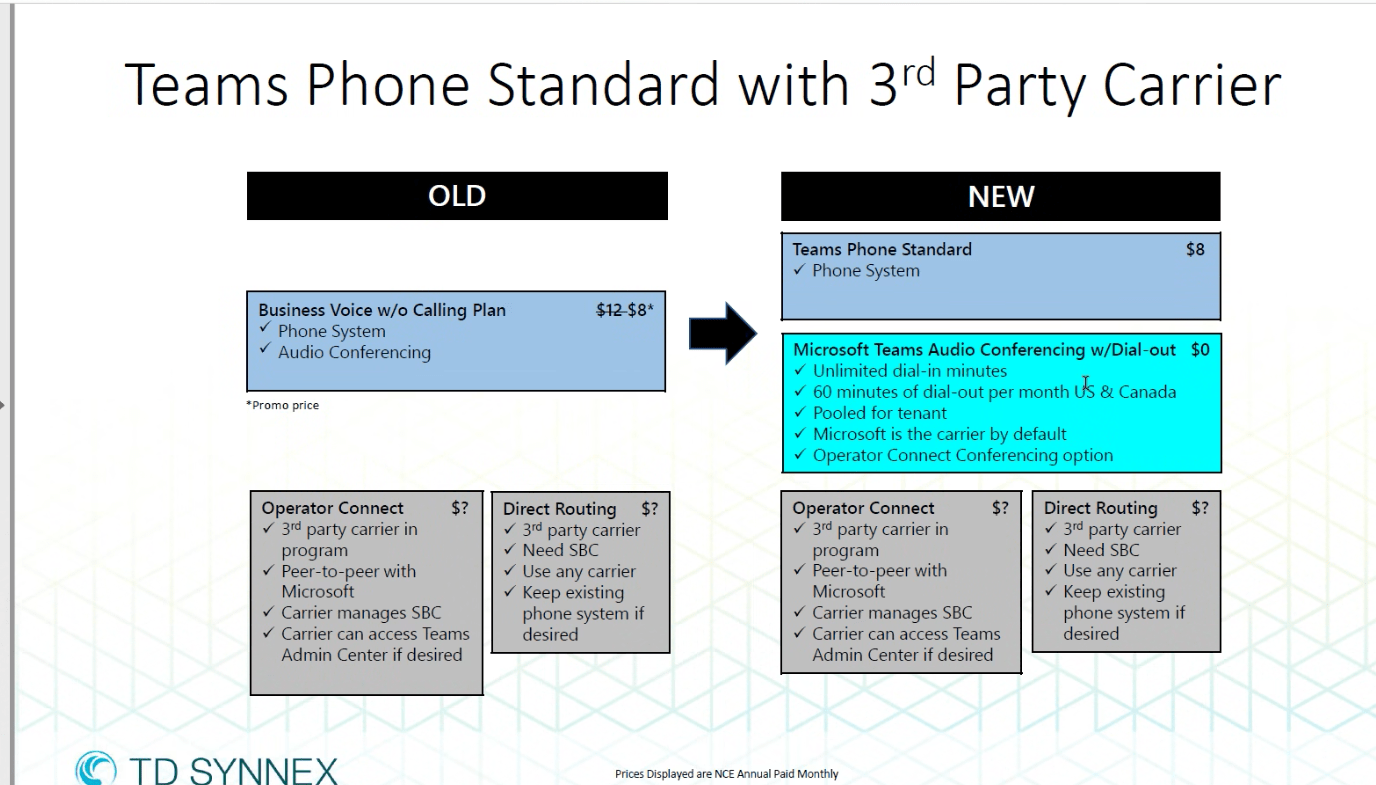
I am not sure when it happened, but as I go to renew the licensing within Microsoft 365, we have noticed that several of the teams phone system licenses have changed names and other are being depreciated. My company uses Synnex to process our licensing, and they published this nice nifty little guide.
Most of the licensing that I had ordered was Business Voice w/o calling plan. This was used for Teams Direct Routing. This is now being replaced with Teams Phone Standard license and apparently another license that is a 0 cost item to allow for Audio Conferencing.
Microsoft also changed the resource account licensing to an easier name as well. This is called Teams Resource Account as opposed to Virtual Teams user. This is also a 0 cost line item. You need this license for your autoattendants and Call queues.
I now have the excitement of changing about 1000 licenses from Business Voice to Teams Phone Standard. I am assuming nothing will break by swapping the license, but time will tell. Remember, it takes Teams up to 24 hours to acknowledge a change, and when people lose their licensing, they lose their phone number. I’m fairly sure that programming won’t get wiped away by changing licensing…but time will tell! No update means everything went just fine….I promise!
I was having a mental block on today’s blog post, so I thought I would ask Chat GPT what it thought on the Teams Phone System. I asked it what were the 5 main features that stand out over the competition. It provided the following:
Call Routing and Transfer: With the Teams Phone System, users can easily route incoming calls to specific individuals or departments within their organization. They can also transfer calls to other team members or external contacts, making it easy to manage call traffic and ensure that customers and partners are connected with the right people.
Voicemail: Teams Phone System includes a voicemail feature, which allows users to leave messages for others who are unavailable to take their calls. Users can receive voicemail messages as an email attachment, making it easy to keep track of missed calls and respond to important messages in a timely manner.
Call Analytics: Teams Phone System offers powerful analytics tools that allow administrators to track call volumes, monitor call quality, and gain insights into how their teams are using the system. This information can help organizations make data-driven decisions to optimize their communication processes and improve customer service.
Auto Attendant: The Auto Attendant feature of Teams Phone System allows organizations to create custom call menus and greetings to route incoming calls to the appropriate departments or individuals. This feature can help to improve customer satisfaction by ensuring that callers are directed to the right people and given the information they need quickly and efficiently.
Emergency Calling: Teams Phone System includes an emergency calling feature, which allows users to dial emergency services directly from their Teams client. The system automatically sends the caller’s location to emergency services, ensuring that help can be dispatched quickly and accurately.
Now, I am not very impressed with this list. Any VoIP system can do points 1, 4, and 5. I would even argue that other platforms do these features BETTER than teams. Voicemail within teams is very nice and is a good selling point. The voicemail gets transcribed instantly and you can view the transcription through teams or outlook. As far as advanced call analytics go, I know that Teams logs all that information, but I don’t find clients appetitite to mine that information all too much. So now, lets highlight my list.
Voicemail. We agree with the statements above.
Integration with other 365 platforms. Seemless integration with Outlook is darn right amazing.
Cost. In my experience, Teams Phone System tends to be cheaper if you already have a 365 subscription.
Remove the requirement of having physical phones. Granted, you can still have your physical phone, but Teams has moved away from the reliance of a physical handset
Mobility. The ability to seamlessly transfer a call from device to device depending on where I am is very powerful.
So, to drill this home, sometimes, the AI is a cool tool, but it is not always right 🙂
RightFax is a popular fax server solution that can be integrated with NextGen Electronic Medical Records (EMR) to streamline fax communication within healthcare organizations. The integration between these two systems can significantly improve workflow and efficiency by eliminating the need for manual faxing and providing a secure way to transmit sensitive patient information.
When it comes to integrating RightFax with NextGen EMR, there are two main methods available: the fax printer driver and the API integration. Each method has its own advantages and considerations, so it’s important to understand both options before deciding which one is best for your organization.
The fax printer driver method is the most straightforward way to integrate RightFax with NextGen EMR. This method involves installing the RightFax fax printer driver on the server where NextGen EMR is hosted. The driver acts as a virtual printer that can be selected from the print dialog box within NextGen EMR. Once the fax printer driver is selected, users can enter the recipient’s fax number and other necessary information, and the document will be sent as a fax through the RightFax server.
The fax printer driver method is a good option for organizations that have limited IT resources and want a simple and easy-to-use fax solution. However, it does have some limitations. For example, the fax printer driver method can only send faxes from within NextGen EMR and automation of faxes submitted can be impacted.
The API integration method is more complex than the fax printer driver method, but it provides more flexibility and functionality. This method involves using the RightFax COM API to build custom integrations between RightFax and NextGen EMR. With the COM API integration, it’s possible to automate fax sending and receiving processes and to send faxes from other applications or systems.
The API integration method is a good option for organizations that have complex fax workflows or that need to integrate RightFax with other systems beyond NextGen EMR.
Ultimately, the decision of which integration method to use will depend on the specific needs and resources of your organization. Regardless of the integration method, integrating RightFax with NextGen EMR can significantly improve the efficiency and security of fax communication within your healthcare organization.
When you’re using Microsoft Teams Direct Routing as your primary calling solution, chances are that sometimes you also need to permanently forward calls to one of your numbers to another external phone number.
Forwarding by a Licensed Teams User
Setting up a forwarding of numbers can be achieved in multiple ways. The most obvious one to just create and license a Teams user and setup a permanent call forwarding for that user in the Teams Client.
The user needs a Business Basic + Teams Phone Standard License. You cannot use a Common Area Phone.
Since there is no voice app like an auto attendant or call queue involved in this scenario, all calls to the direct number of this particular user will be forwarded right away. This also means that the caller will hear the ring back tone, until the external participant (forwaring target) answers the call.
Advantages:
Direct forwarding, call does not get picked up or intercepted by Teams
Good for scenarios where the forwarding target often changes. This allows users to change the number without needing a Teams Administrator to make a change
Disadvantages:
License costs
Configuration can only be reviewed or changed by logging in to the user
Can’t use Service or Toll-Free numbers
Forwarding by a Resource Account
It’s also possible to transfer calls to external PSTN numbers by using resource accounts assigned to auto attendants or call queues. Before you can assign a number to a resource account, you need to assign a free Teams Phone Standard — Virtual User License to the resource account.
Once the license is assigned, we need to assign a phone number to the resource account:
For my test, I setup a auto attendant without business hours so it will always perform the same action: forward the call to an external number. This works but the autoattendant picks up the call causing a pause in the phone call. This would not work if the forward was for a FAX number.
Since it’s also possible to forward calls from a call queue to an external number, we can leverage this to create a similar experience as to when the call is permanently forwarded by a Teams user.
A call queue has two options to control actions or forwardings. Overflow (max. number of simultaneous calls) or timeout.
If we set the timeout to zero (0 minutes, 0 seconds) the queue still answers the call, before it’s forwarded. Even if there is no greeting configured.
A good example to see that the queue picked up the call is that the counter starts on any phone. Here I’m using Skype to call the call queue and you can see that the call has been established for 5 seconds, even though the configured forwarding target has not answered the call yet. While the call rings the forwarding target, Teams will generate a ring back tone inside the already established call.
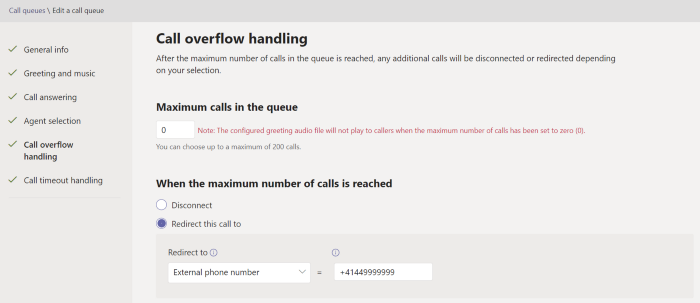
If we set the overflow threshold of the queue to zero on the other hand, TAC shows a warning message that the queue won’t play the greeting when the overflow threshold is set to 0.
Advantages:
No License costs
Can use Service or Toll-Free numbers
FAX calls will work if using a call queue
Disadvantages:
Only Teams admins can change the forwarding target
Summary
Even though it might not be an obvious solution, using a call queue to permanently forward calls is still a great way to have more control over all your DIDs right inside Teams itself without adding any license costs.
I have a client that currently uses a Valcom VIP-801A Paging Gateway which at initial glance does not have a direct integration with Teams PBX. I have explored the Walkie Talkie feature, but that does not integrate with the existing pager. You could do something fancy with an iPad and a bluetooth overhead pager but this paging unit feels like it is older than I am. It is an analog overhead pager unit and I still have nightmares when I set it up back in 2017. This leaves me with the following options:
Replace it with some sort of bluetooth paging unit that can integrate with a tablet. This would support Walkie Talkie integration within teams and we are done
Leave it alone and leave physical phones that is hooked up to the old integration that is now dedicated to paging.
Buy CCX phones that integrate within teams but in order to use the paging unit, you have to switch profiles from teams to “paging” profile. The paging profile is just a SIP profile.
Throw out the overhead pager. They are dumb 🙂
Option 3 is dumb. No one is going to take the time to log off the phone, reboot it, then perform a page then reboot the phone again. I am confused that this is even an option with these phones. The purpose of the paging unit is that it is quick and simple. Nothing is quick and simple with option 3.
Option 2 makes the most sense. There is little overhead with leaving the existing system in place and most users would use either their cell phone or computer for teams. Most users tend to not use the physical phones if that is an option. The downside of this is that there are phones on people’s desks that they cannot use to make phone calls. These phones would be dedicated to making overhead pages.
Option 1 is not likely. These overhead paging units are built into the ceiling and very difficult to get to. They also do not have physical power typically so a bluetooth paging unit would need to have electrical done in order to install it. I find that most companies that have an overhead paging unit tend to not have the investment capital to modernize their overhead paging unit especially when the existing one “works.” Works is a bit of a stretch since it doesn’t actually work with modern equipment. This is like saying why would I get rid of my tape player when it plays music just fine. I don’t need to steam music and play any song I can think of with a few clicks of the mouse or a quick voice command. Tape players just work!
My client is choosing option 4 since they are less in the office and more remote. They found that the paging unit stopped functioning well for their pandemic changed business requirements. If you have come across another option on how to integrate with teams, I would love to know. I do work with these dinosaurs about once a year or so, so while I have exposure to them, it is not as much as other telecommunication technologies.





 Blog posts about Fax and Voice